> ## Documentation Index
> Fetch the complete documentation index at: https://info.bundle.social/llms.txt
> Use this file to discover all available pages before exploring further.
# Get to know teams in bundle.social
> Learn everything about teams in bundle.social - how to create, switch, and manage teams. Understand how teams organize your social accounts and enable collaboration.
In this tutorial you will learn how teams work in bundle.social - how to create them, switch between them, and manage their settings.
## What is a team?
Each organization can have many teams. A team is a **social set** - a group of social accounts that belong to a single entity, such as a company, a project, or a personal brand.
## Create a team
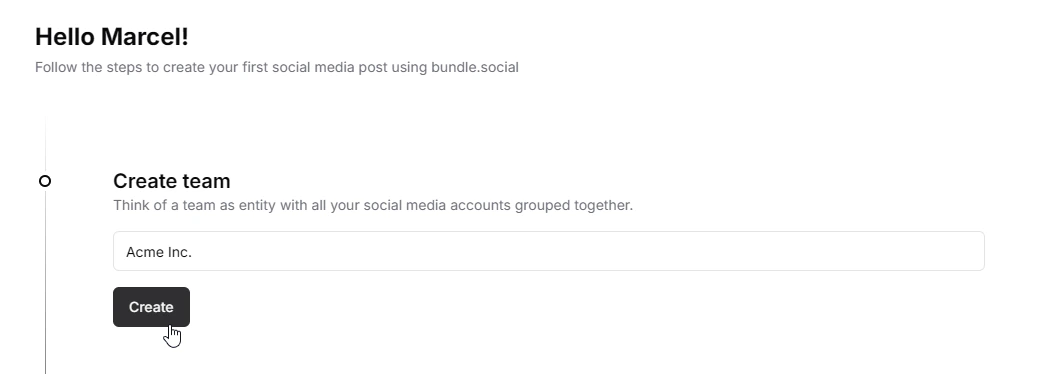
When you join for the first time, you'll be asked to create your first free team. You can upgrade it later.
 ### Need another team?
Navigate to the top left of the page and click the team selector.
### Need another team?
Navigate to the top left of the page and click the team selector.
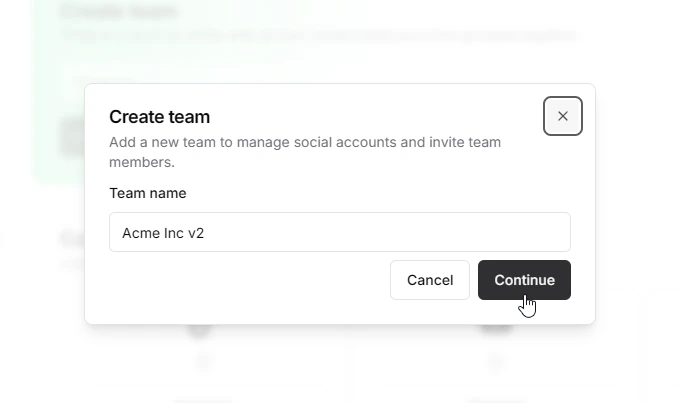
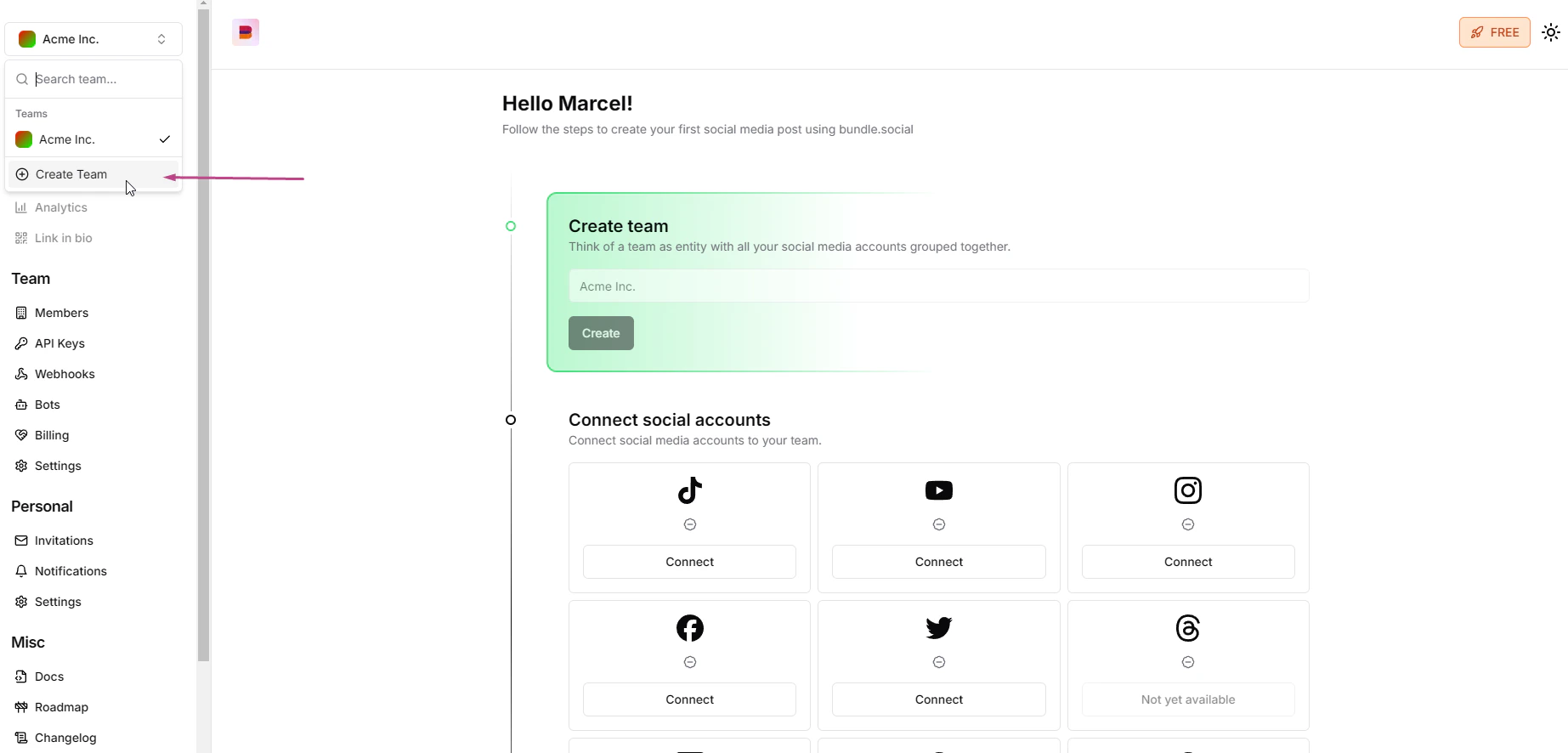 From here you can create an additional team.
 ## Switch teams
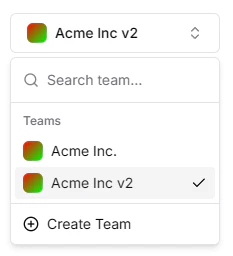
Open the team selector in the top left again and pick the team you want to work on.
## Switch teams
Open the team selector in the top left again and pick the team you want to work on.
 ## The team menu
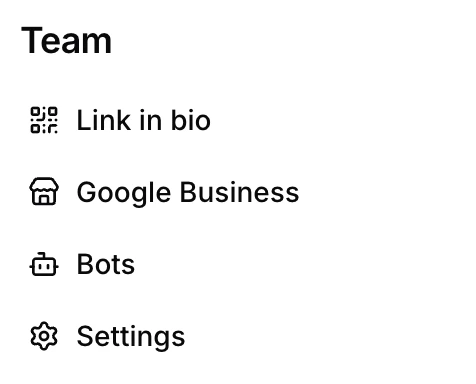
Team-level features live in the **Team** section of the sidebar - Link in bio, Google Business, Bots, and Settings.
## The team menu
Team-level features live in the **Team** section of the sidebar - Link in bio, Google Business, Bots, and Settings.
 ## Link in bio
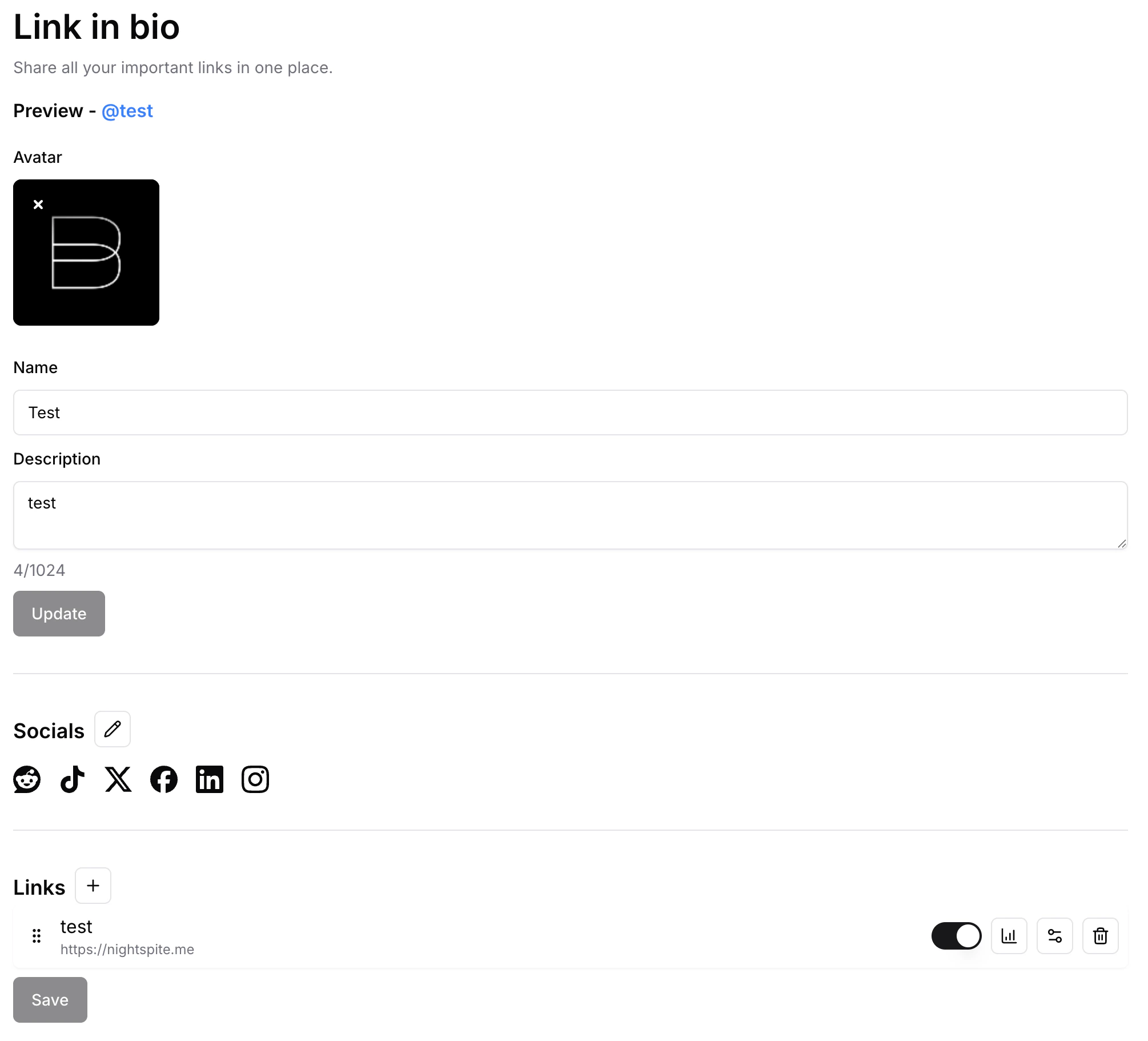
The **Link in bio** page is a single shareable page that collects all of your important links - perfect as the one URL in your social profiles.
Set an avatar, name, and description, add your social icons, and build a list of links. Each link can be toggled on or off, reordered by dragging, and has its own settings and click analytics. Use the **Preview** link at the top to see the public page, and click **Save** when you're done.
## Link in bio
The **Link in bio** page is a single shareable page that collects all of your important links - perfect as the one URL in your social profiles.
Set an avatar, name, and description, add your social icons, and build a list of links. Each link can be toggled on or off, reordered by dragging, and has its own settings and click analytics. Use the **Preview** link at the top to see the public page, and click **Save** when you're done.
 ## Google Business
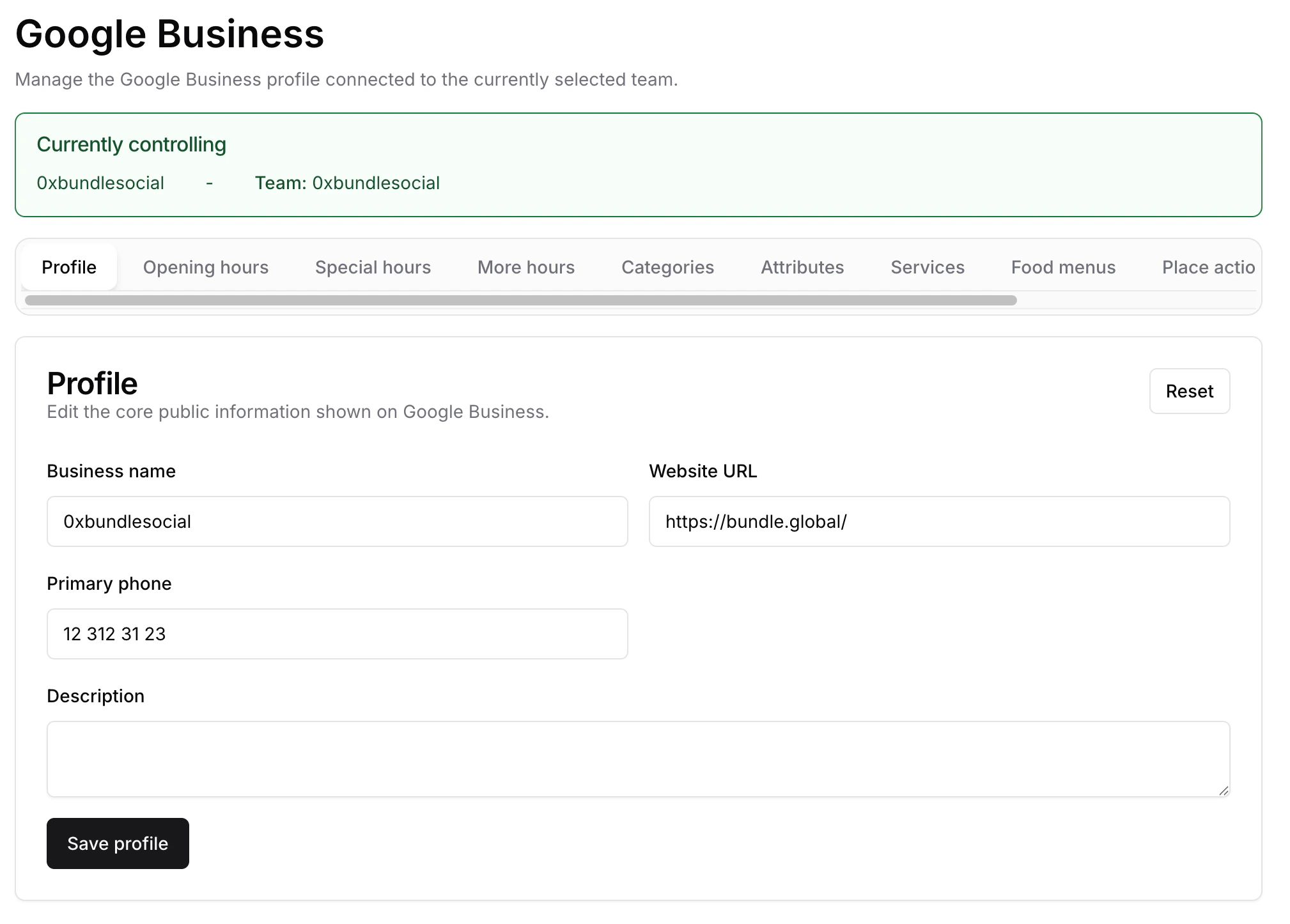
The **Google Business** page manages the Google Business profile connected to the current team. The banner at the top shows which location you're controlling.
Use the tabs to edit each part of the profile - Profile, Opening hours, Special hours, More hours, Categories, Attributes, Services, Food menus, and Place actions. The Profile tab covers the core public information: business name, website, phone, and description. Click **Save profile** to publish your changes.
## Google Business
The **Google Business** page manages the Google Business profile connected to the current team. The banner at the top shows which location you're controlling.
Use the tabs to edit each part of the profile - Profile, Opening hours, Special hours, More hours, Categories, Attributes, Services, Food menus, and Place actions. The Profile tab covers the core public information: business name, website, phone, and description. Click **Save profile** to publish your changes.
 ## Bots
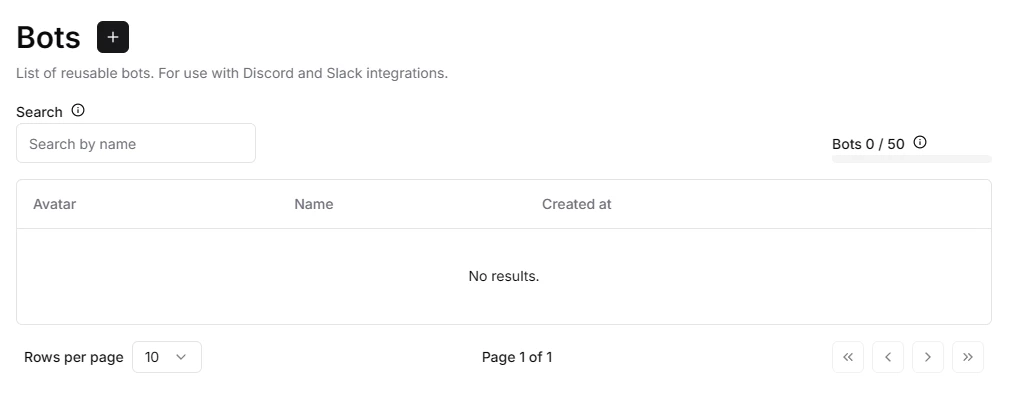
Bots let you customize how posts appear when published to Discord and Slack. To learn more, [read the bots guide](/knowledge/posts/dc-slack-bots).
## Bots
Bots let you customize how posts appear when published to Discord and Slack. To learn more, [read the bots guide](/knowledge/posts/dc-slack-bots).
 Billing, API keys, and webhooks are managed at the organization level.
See [What is an organization?](/knowledge/organization/what-is-an-organization).
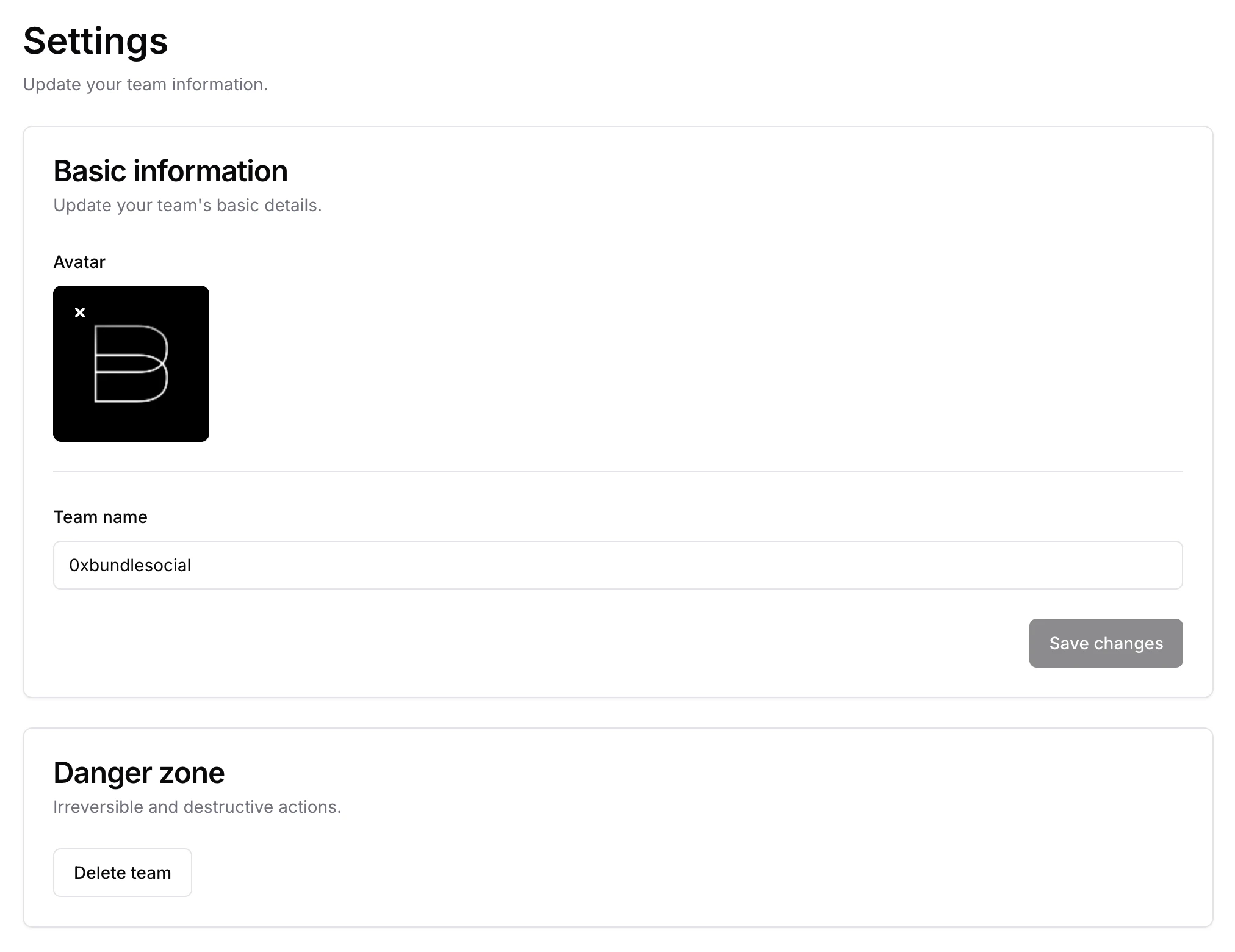
## Change your team name and picture
Click **Settings**. From here you can:
* Change the team picture
* Change the team name
* Delete the team
Billing, API keys, and webhooks are managed at the organization level.
See [What is an organization?](/knowledge/organization/what-is-an-organization).
## Change your team name and picture
Click **Settings**. From here you can:
* Change the team picture
* Change the team name
* Delete the team
 ## Summary
You now know the basics of teams - how to create them, switch between them, and manage their settings. Attention is already out there; you just need to post and get it.
with lukewarm regards c: - bundle.social staff
## Summary
You now know the basics of teams - how to create them, switch between them, and manage their settings. Attention is already out there; you just need to post and get it.
with lukewarm regards c: - bundle.social staff