> ## Documentation Index
> Fetch the complete documentation index at: https://info.bundle.social/llms.txt
> Use this file to discover all available pages before exploring further.
# Connect your X (Twitter) account to bundle.social
> Step-by-step tutorial on connecting your X (Twitter) account to bundle.social. Learn how to authorize permissions and start scheduling tweets.
In this short tutorial you will learn how to connect your X (Twitter) account to bundle.social
First things first, create a team or be a part of one
If you don't know what the teams are, [click here](/knowledge/teams/what-are-teams)
to get up to speed.
## Connect your X (Twitter) account
bundle.social is built in a way that won't let you down. If you are in a team and
there is no social account connected, your dashboard will look like this.
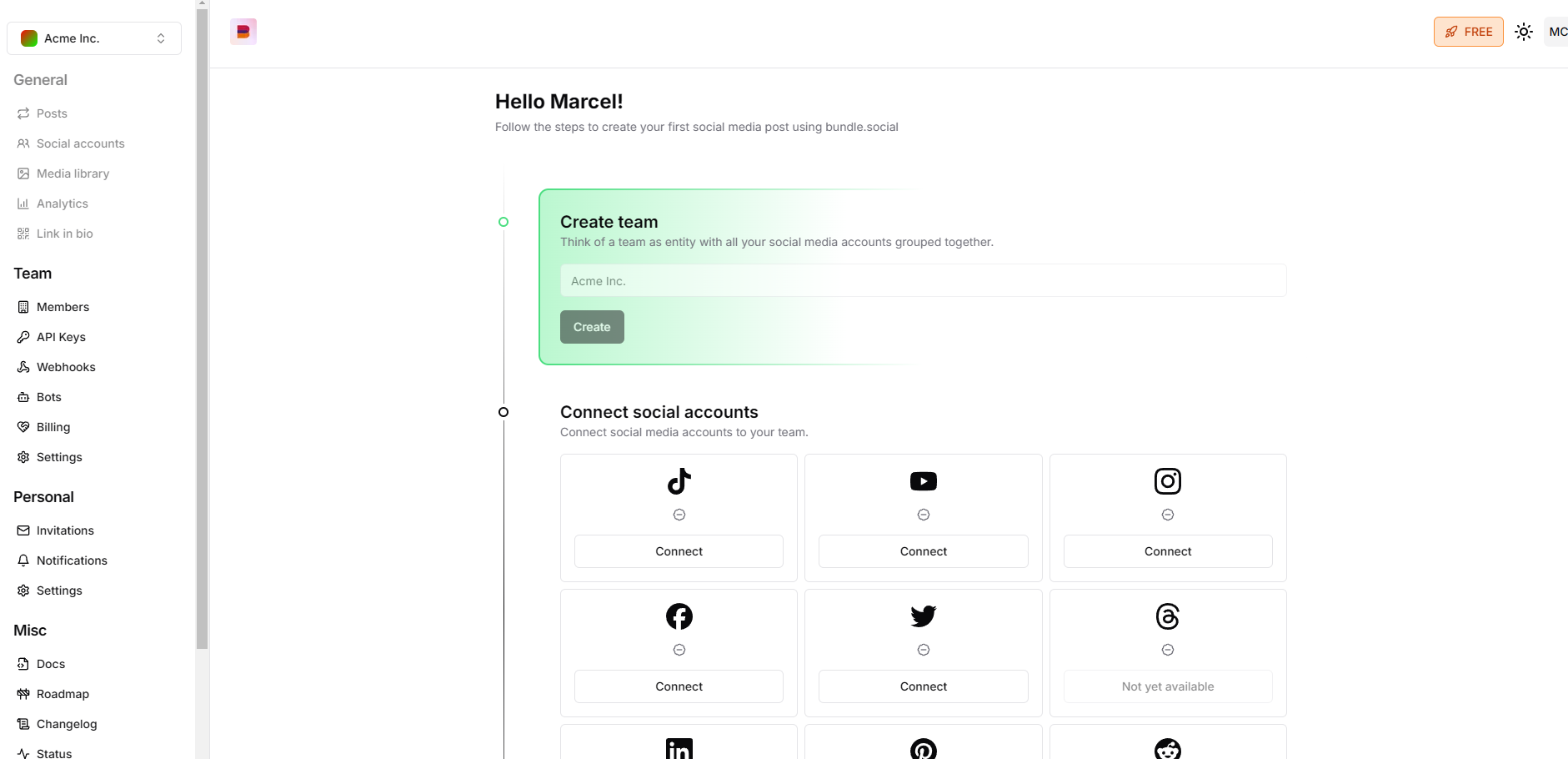 But if you are a new person joining an existing team, you will most likely see the
**Post** page first. If so, navigate to the left corner of the screen and press the
**Social accounts** button. Click it and *voilà*, you are in the right place.
But if you are a new person joining an existing team, you will most likely see the
**Post** page first. If so, navigate to the left corner of the screen and press the
**Social accounts** button. Click it and *voilà*, you are in the right place.
 Now, click **Connect** on the X (Twitter) tile.
 You will be asked to log in.
 Great, now allow all access for the app and click. **Authorize app**.
bundle.social staff does not have access to your account or account keys, we
cannot delete your account.
Great, now allow all access for the app and click. **Authorize app**.
bundle.social staff does not have access to your account or account keys, we
cannot delete your account.
 After a successful connection, you will be redirected back to bundle.social, and
you should see a green popup on the right-hand side, and the X (Twitter) tile
button should say **Disconnect**.
After a successful connection, you will be redirected back to bundle.social, and
you should see a green popup on the right-hand side, and the X (Twitter) tile
button should say **Disconnect**.
 ## Errors
There should be no errors at this point, but if you encounter one, it might be this:
Error connecting to Twitter
This can mean many things outside our control, maybe X (Twitter) had a bug or there
was a timeout. If you get this error, simply retry. Most often, it will help.
You didn't grant all the necessary permissions
This means that you didn't grant all the permissions we need to post on your behalf. You can try to reconnect and grant all the permissions.
## Errors
There should be no errors at this point, but if you encounter one, it might be this:
Error connecting to Twitter
This can mean many things outside our control, maybe X (Twitter) had a bug or there
was a timeout. If you get this error, simply retry. Most often, it will help.
You didn't grant all the necessary permissions
This means that you didn't grant all the permissions we need to post on your behalf. You can try to reconnect and grant all the permissions.