> ## Documentation Index
> Fetch the complete documentation index at: https://info.bundle.social/llms.txt
> Use this file to discover all available pages before exploring further.
# Connect your Instagram account to bundle.social
> Learn how to connect your Instagram account to bundle.social. Follow our step-by-step guide to authorize permissions and start scheduling Instagram posts.
In this tutorial, you will learn how to connect your Instagram account to your team.
First things first, create a team or be a part of one
If you don't know what the teams are, [click here](/knowledge/teams/what-are-teams)
to get up to speed.
## Connect your Instagram account
bundle.social is built in a way that won't let you down. If you are in a team and there is no social account connected, your dashboard will look like this.
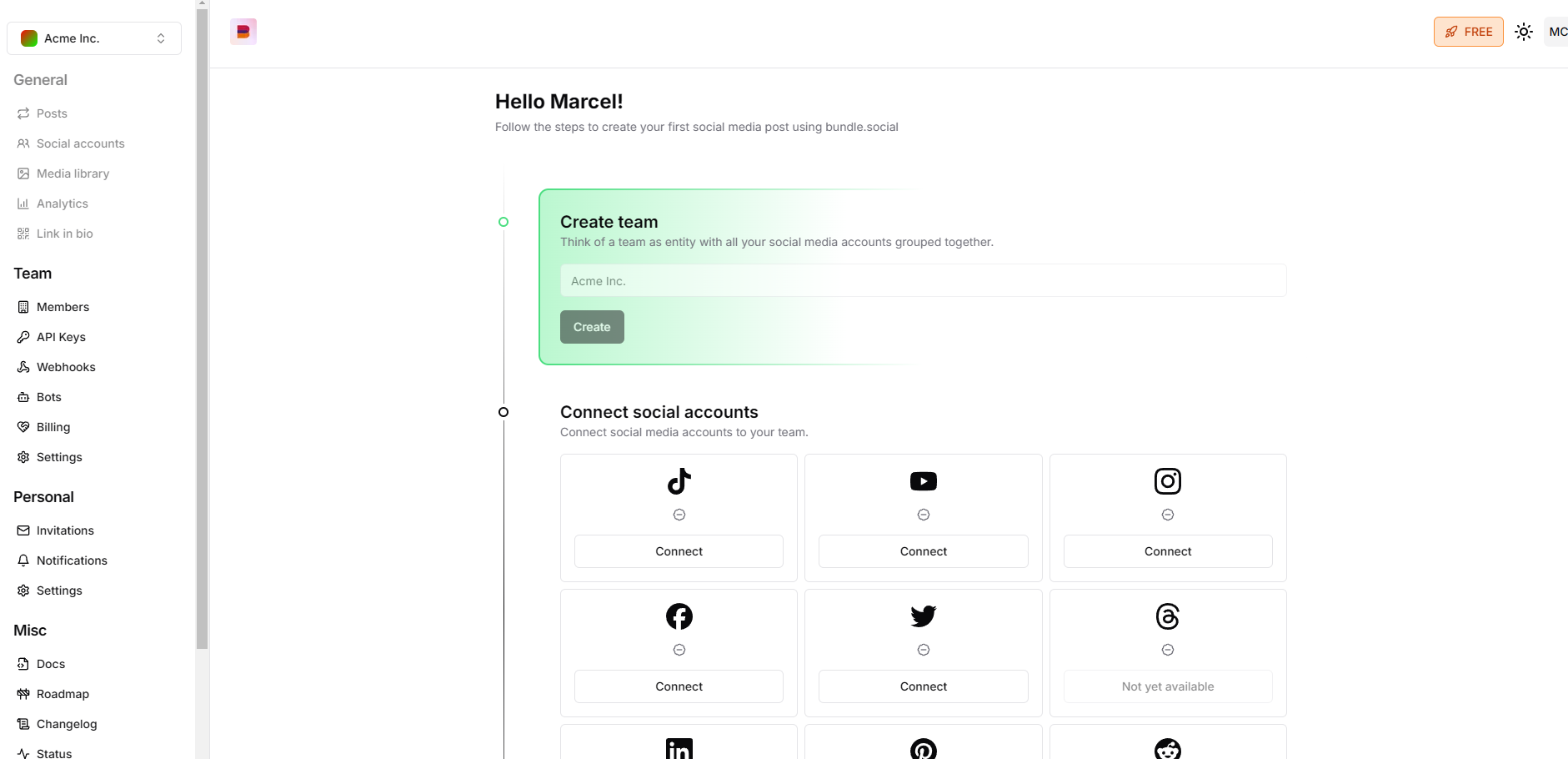 But if you are a new person joining an existing team, you will most likely see the **Post** page first. If so, navigate to the left corner of the screen and press the **Social accounts** button. Click it and *voilà*, you are in the right place.
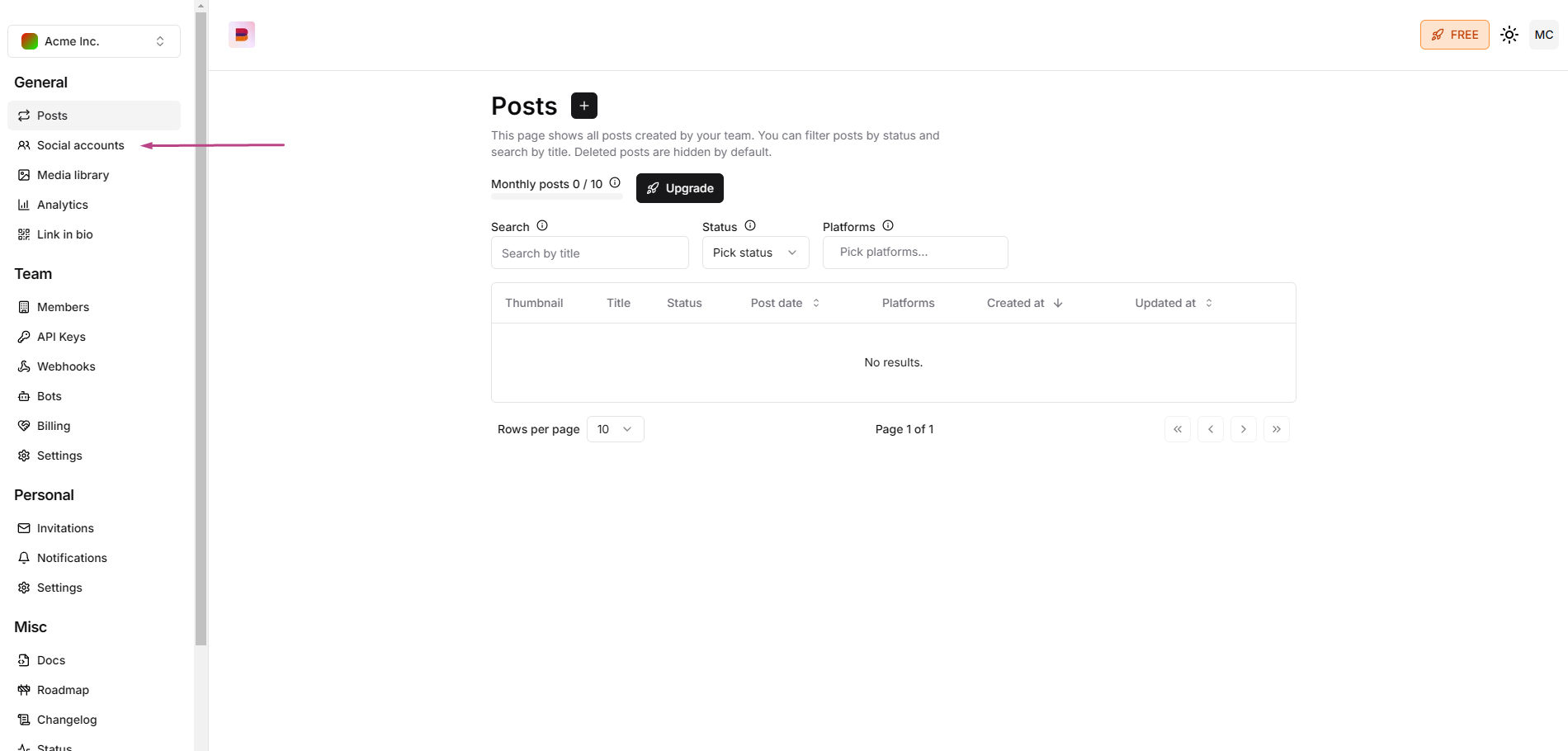 Now, click **Connect** on the Instagram tile.
 You will be asked to log in.
 bundle.social staff does not have access to your account or account keys, and
we cannot delete your account.
Next, you will be able to pick the Facebook page. We don't know why they did it like that, but you can't omit this step. We don't use it unless you connect your Facebook separately, so it's just there.
bundle.social staff does not have access to your account or account keys, and
we cannot delete your account.
Next, you will be able to pick the Facebook page. We don't know why they did it like that, but you can't omit this step. We don't use it unless you connect your Facebook separately, so it's just there.
 Now you will be asked to pick an Instagram account.
 After the whole page selection debacle, you will see what permissions we are accessing. Click **Save**.
 Here you can see the connection confirmation.
 You will be redirected back to bundle.social, where you will be asked to pick the Instagram account that you want to manage.
 Pick the account and click **Confirm**.
 After a successful connection, you should see a green popup on the right-hand side, and the Instagram button should say **Disconnect**.
 If you connect Instagram through the Facebook flow, you may be offered **Business** vs **standard** login. Some **Instagram accounts only appear** when you use business-scoped permissions. If the account you need is missing, try reconnecting with the other method. **Reauthenticate** in the app is there when we detect a bad connection. See [Connect Social Accounts](/api-reference/connect-social-accounts) (section **withBusinessScope**).
## Errors
There should be no errors at this point, but if there are, they will likely be one of these two:
Error connecting Instagram.
This can mean many things outside our control, maybe Instagram had a bug or there
was a timeout. If you get this error, simply retry. Most often, it will help.
You didn't grant all the necessary permissions
This means that you didn't grant all the permissions we need to post on your behalf. You can try to reconnect and grant all the permissions.
You don't have enough permissions on any of your Instagram accounts.
You are probably not an admin for your Instagram account.
If you connect Instagram through the Facebook flow, you may be offered **Business** vs **standard** login. Some **Instagram accounts only appear** when you use business-scoped permissions. If the account you need is missing, try reconnecting with the other method. **Reauthenticate** in the app is there when we detect a bad connection. See [Connect Social Accounts](/api-reference/connect-social-accounts) (section **withBusinessScope**).
## Errors
There should be no errors at this point, but if there are, they will likely be one of these two:
Error connecting Instagram.
This can mean many things outside our control, maybe Instagram had a bug or there
was a timeout. If you get this error, simply retry. Most often, it will help.
You didn't grant all the necessary permissions
This means that you didn't grant all the permissions we need to post on your behalf. You can try to reconnect and grant all the permissions.
You don't have enough permissions on any of your Instagram accounts.
You are probably not an admin for your Instagram account.