> ## Documentation Index
> Fetch the complete documentation index at: https://info.bundle.social/llms.txt
> Use this file to discover all available pages before exploring further.
# What is the Media Library?
> Learn how to use the Media Library in bundle.social to store, organize, and manage your social media content. Upload, filter, and track used vs unused media.
## Media Library is a "storage"
Yes and no. Let us explain how it works. Media in bundle.social is either:
* **used** - you made a post with it,
* **unused** - you did not make a post with it.
## How to use the Media Library
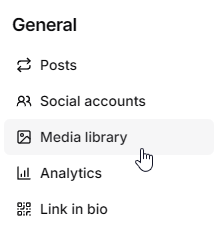
On the sidebar, click **Media Library**.
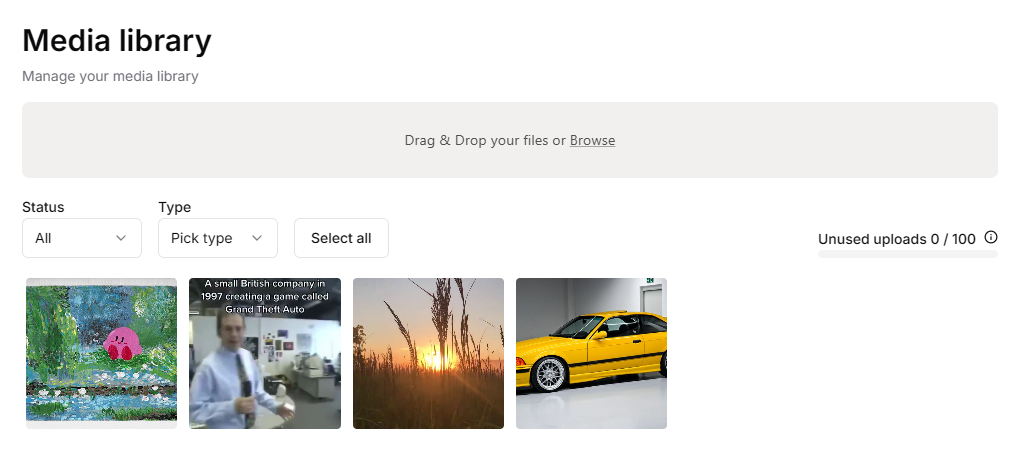
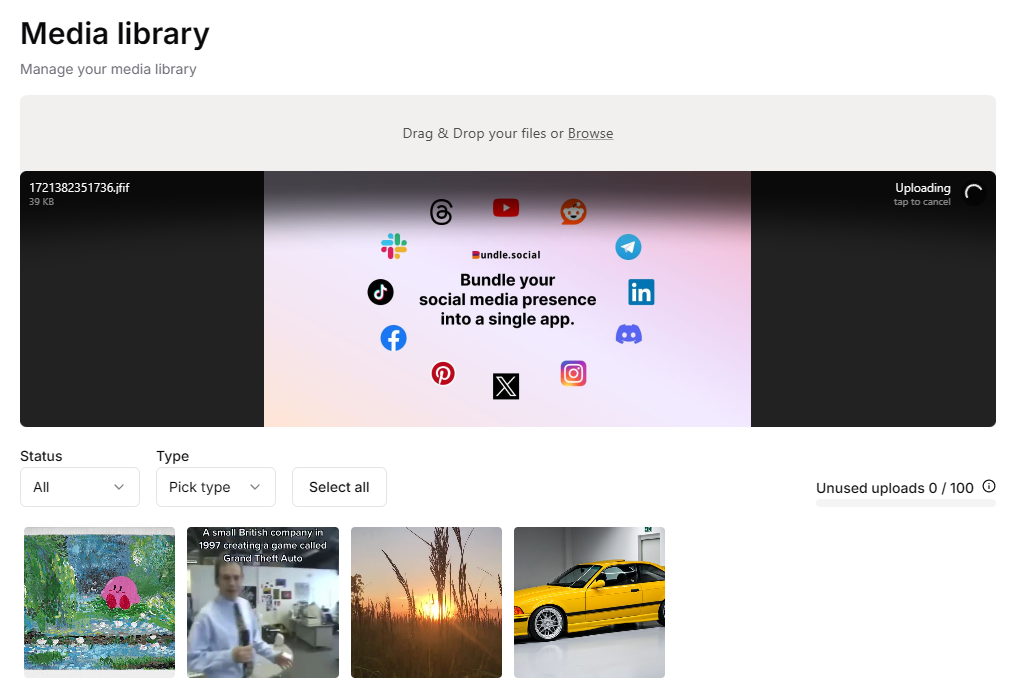
 Now you can see your **Media Library** dashboard. To upload something, either click on the **gray** area or just drop it there. You can also **paste a public URL** in the upload flow so we fetch the file for you (**1 GB** max, **60 second** download window-see [Media Upload](/api-reference/upload-content#upload-from-a-url)).
 ## How to see content details?
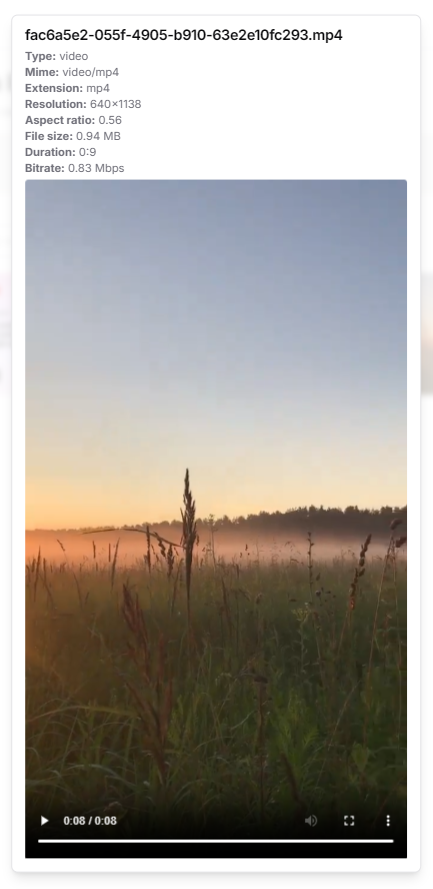
Sometimes, if you have multiple versions of a photo/video, you aren't sure if the one you uploaded is the correct one. To check the metadata of the content, hover over the content and click the **eye** icon.
## How to see content details?
Sometimes, if you have multiple versions of a photo/video, you aren't sure if the one you uploaded is the correct one. To check the metadata of the content, hover over the content and click the **eye** icon.
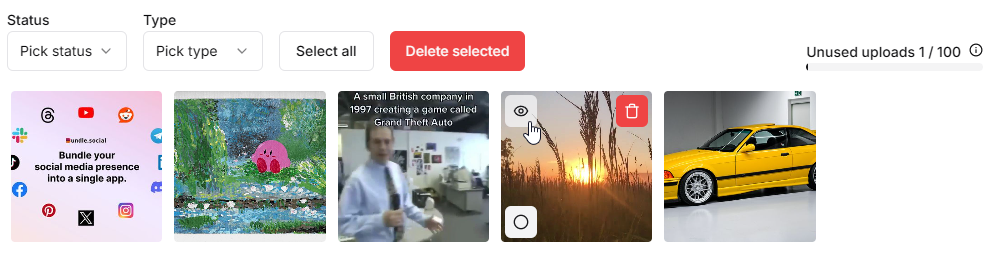 Now you can see the metadata.
 ## How to delete content from the Media Library?
You can hover over content and press the **trash bin** icon or select multiple pieces of content and click **Delete selected**.
## How to delete content from the Media Library?
You can hover over content and press the **trash bin** icon or select multiple pieces of content and click **Delete selected**.
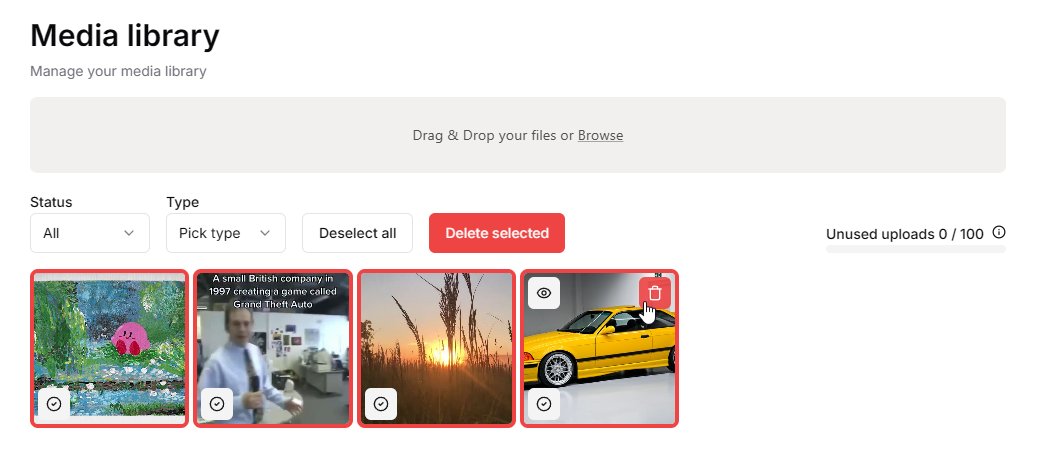 By deleting content that is unused, you are updating your **unused uploads**
limit.
## Filtering in the Media Library
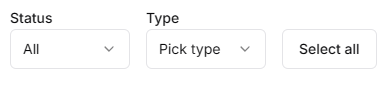
Here you can see two filters: one is for status, and the second one is for type, which is either:
* image,
* video.
That's self-explanatory, so let us focus on the status filter.
By deleting content that is unused, you are updating your **unused uploads**
limit.
## Filtering in the Media Library
Here you can see two filters: one is for status, and the second one is for type, which is either:
* image,
* video.
That's self-explanatory, so let us focus on the status filter.
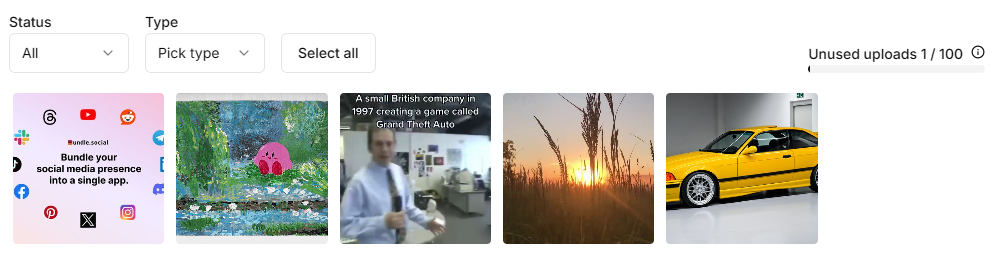
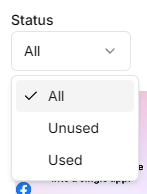 When set to **All**, you can see **ALL** of your content.
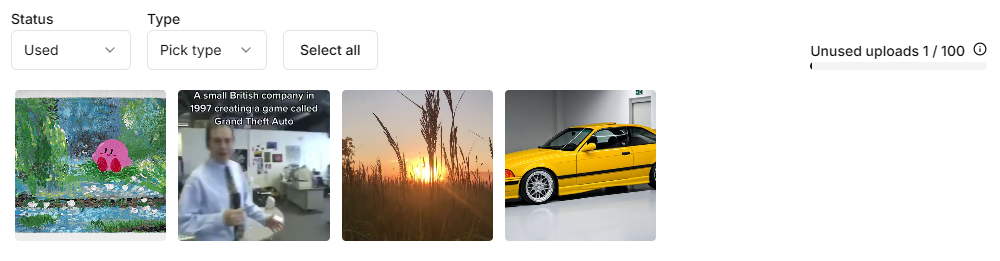
 When set to **Used**, you can see **ONLY USED** content. This is the content that you have already used on some platform, like Instagram.
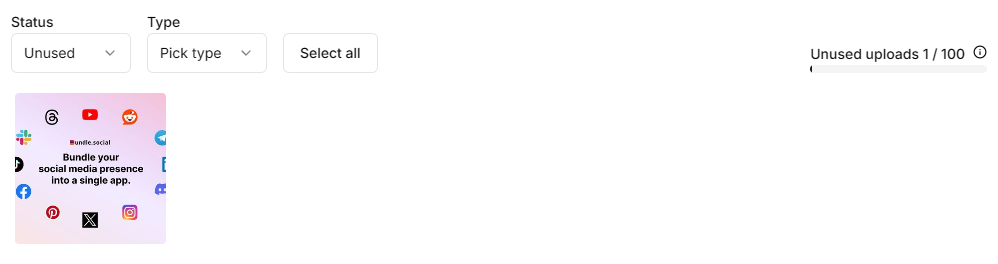
 When set to **Unused**, you can see **ONLY UNUSED** content. This is the content that is not posted anywhere.
 ## Summary
The Media Library is a neat feature that lets you post on the go and see what content you have already used.
## Summary
The Media Library is a neat feature that lets you post on the go and see what content you have already used.