> ## Documentation Index
> Fetch the complete documentation index at: https://info.bundle.social/llms.txt
> Use this file to discover all available pages before exploring further.
# Discord and Slack bots on bundle.social
> Learn how to create and manage Discord and Slack bots for posting content through bundle.social. Understand why bots are required and how to set them up.
## Why bots?
Discord and Slack don't allow API access to user accounts. To automate anything, they provide **bots** and an API to control them - so that's what bundle.social uses. No tomfoolery on our side.
## How to create a bot
There are two ways to create a bot. You can do it while [creating a post](/knowledge/posts/create-first-post#discord-and-slack-quirk), or from the **Bots** page.
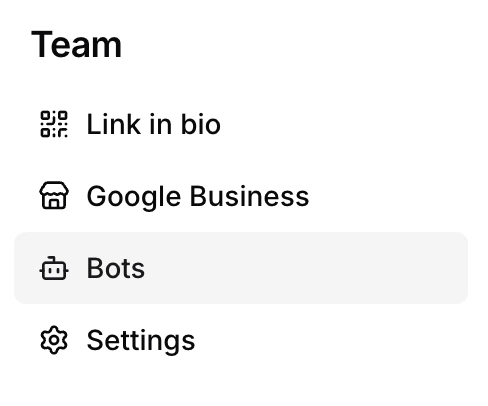
Click **Bots** in the sidebar.
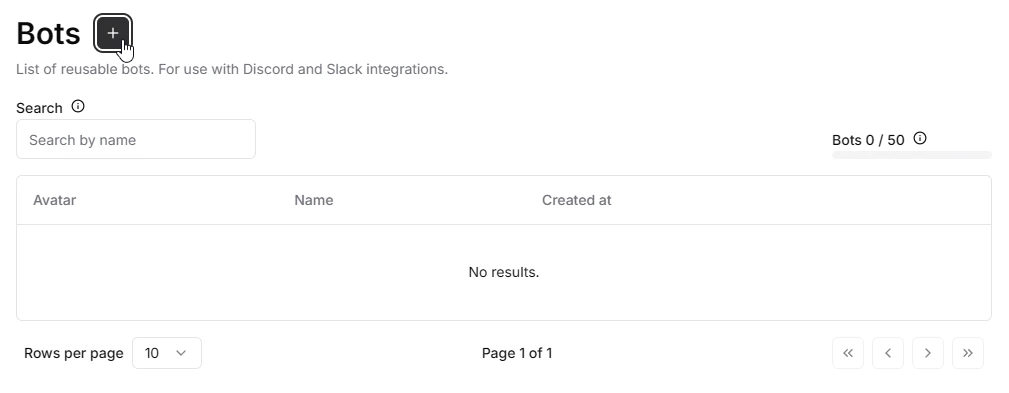
 This is your **Bots** dashboard. It's empty for now - click the **+** icon to open the bot creator.
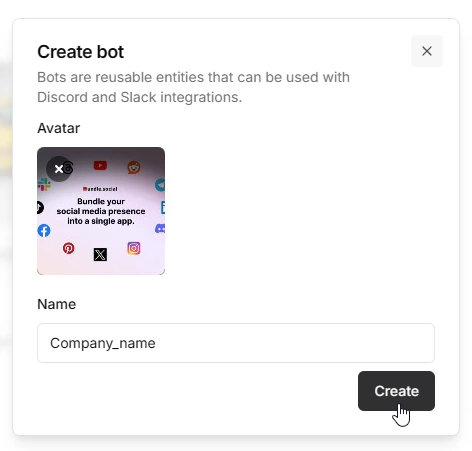
 A popup appears. Upload a bot cover photo and give it a name. The name is shown as the sender in Discord/Slack, so choose carefully. Then click **Create**.
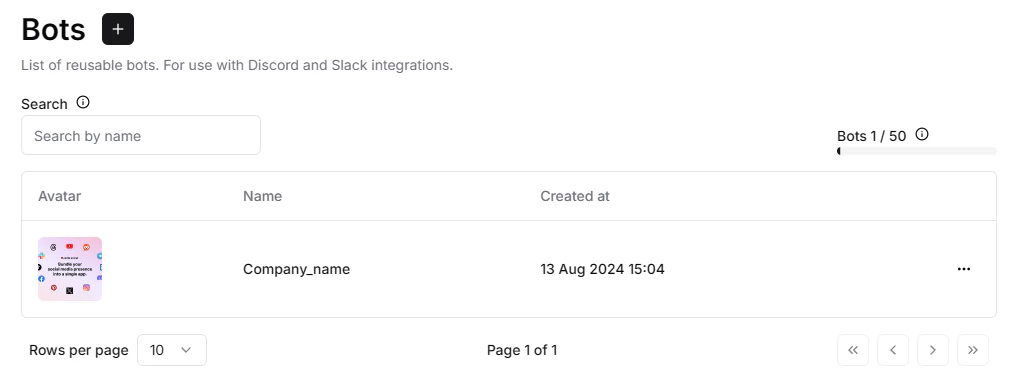
 Done - your new bot now shows up in the bot list.
 Later, when you create a post that goes to Discord or Slack, **don't forget to pick your bot from the dropdown**.
