> ## Documentation Index
> Fetch the complete documentation index at: https://info.bundle.social/llms.txt
> Use this file to discover all available pages before exploring further.
# Get to know organizations in bundle.social
> Learn how organizations work in bundle.social - manage billing, API keys, and webhooks at the organization level across all of your teams.
In this tutorial you will learn how organizations work in bundle.social and what you manage at the organization level.
## What is an organization?
An organization is the top-level account in bundle.social. Each organization can contain many teams, and a few things are shared across all of them: **API keys**, **webhooks**, and **billing** are managed at the organization level rather than per team.
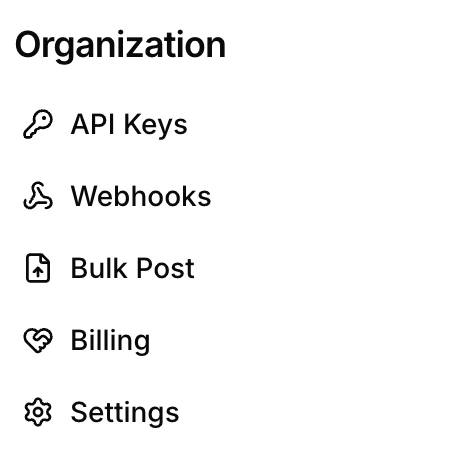
You'll find all of these in the **Organization** section of the sidebar.
 ## Create an API key
If you want to automate your bundle.social workflow, you can use our API or SDK - [learn more here](/api-reference/introduction).
In the sidebar, click **API Keys**. This is where you create and manage API access.
## Create an API key
If you want to automate your bundle.social workflow, you can use our API or SDK - [learn more here](/api-reference/introduction).
In the sidebar, click **API Keys**. This is where you create and manage API access.
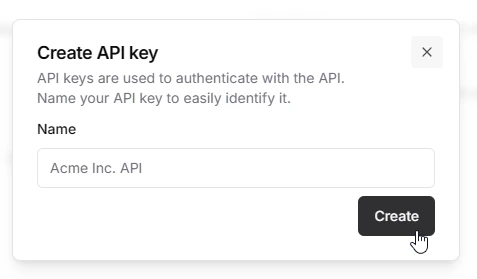
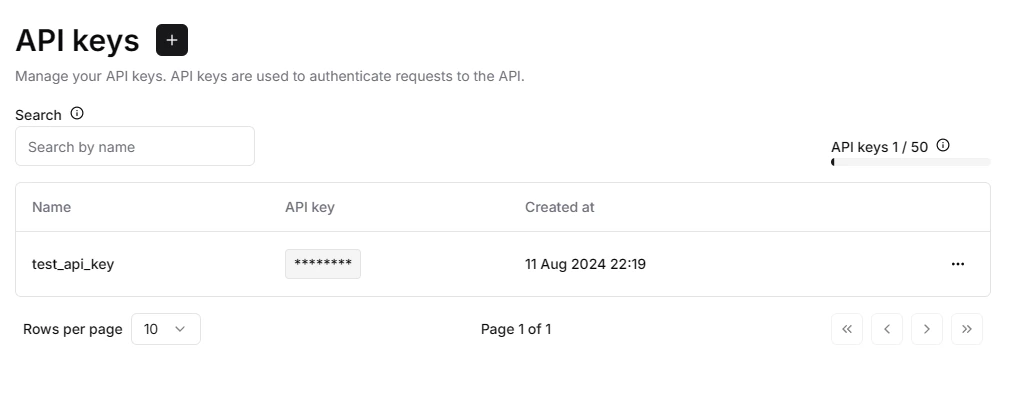 Click **+**, enter a name for the key, and click **Create**.
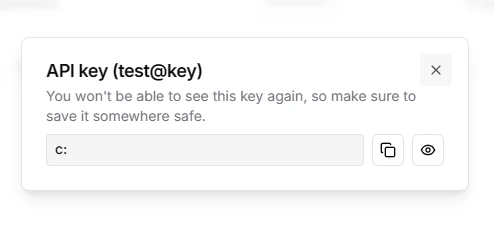
You can only see an API key once, so copy it and store it somewhere safe.
Click **+**, enter a name for the key, and click **Create**.
You can only see an API key once, so copy it and store it somewhere safe.
 ## Add a webhook
In the sidebar, click **Webhooks**.
## Add a webhook
In the sidebar, click **Webhooks**.
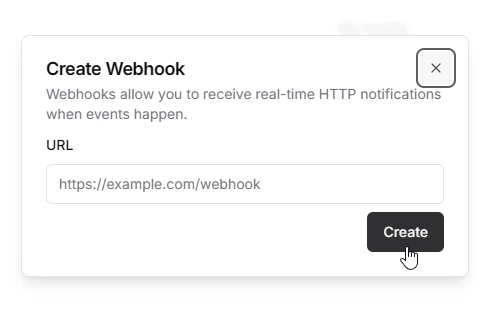
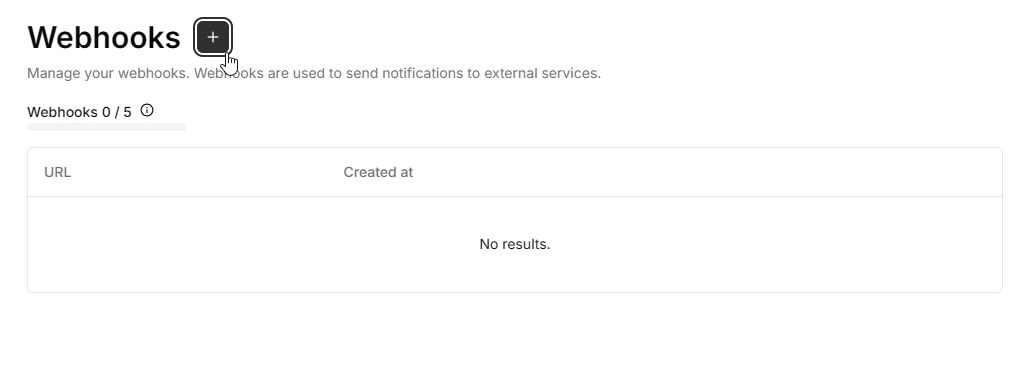 Click the **+** icon. In the popup, enter the URL you want to receive webhook events on.
 ## Manage billing
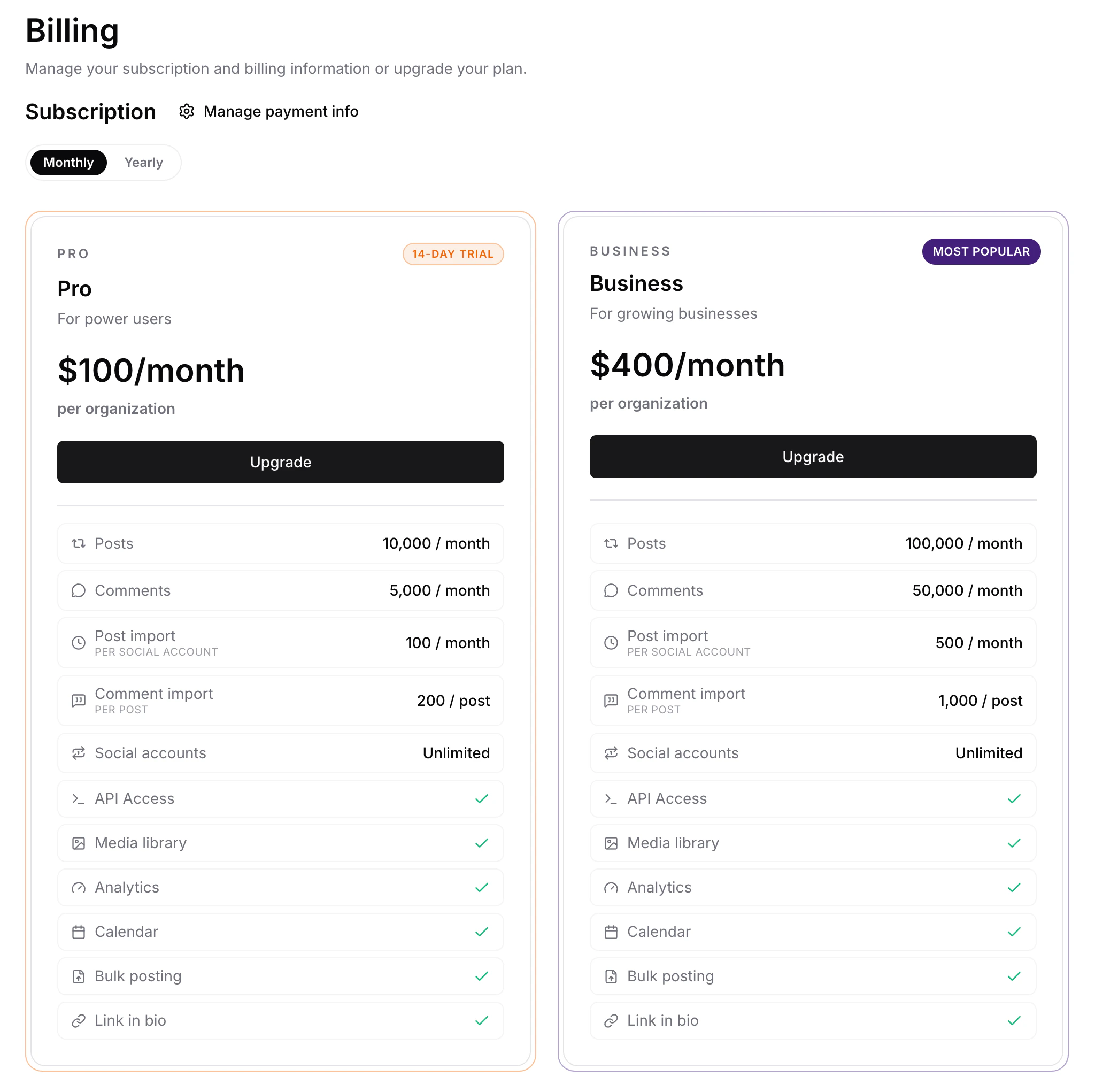
To change your plan, click **Billing**. Plans can be billed monthly or yearly using the picker at the top.
## Manage billing
To change your plan, click **Billing**. Plans can be billed monthly or yearly using the picker at the top.
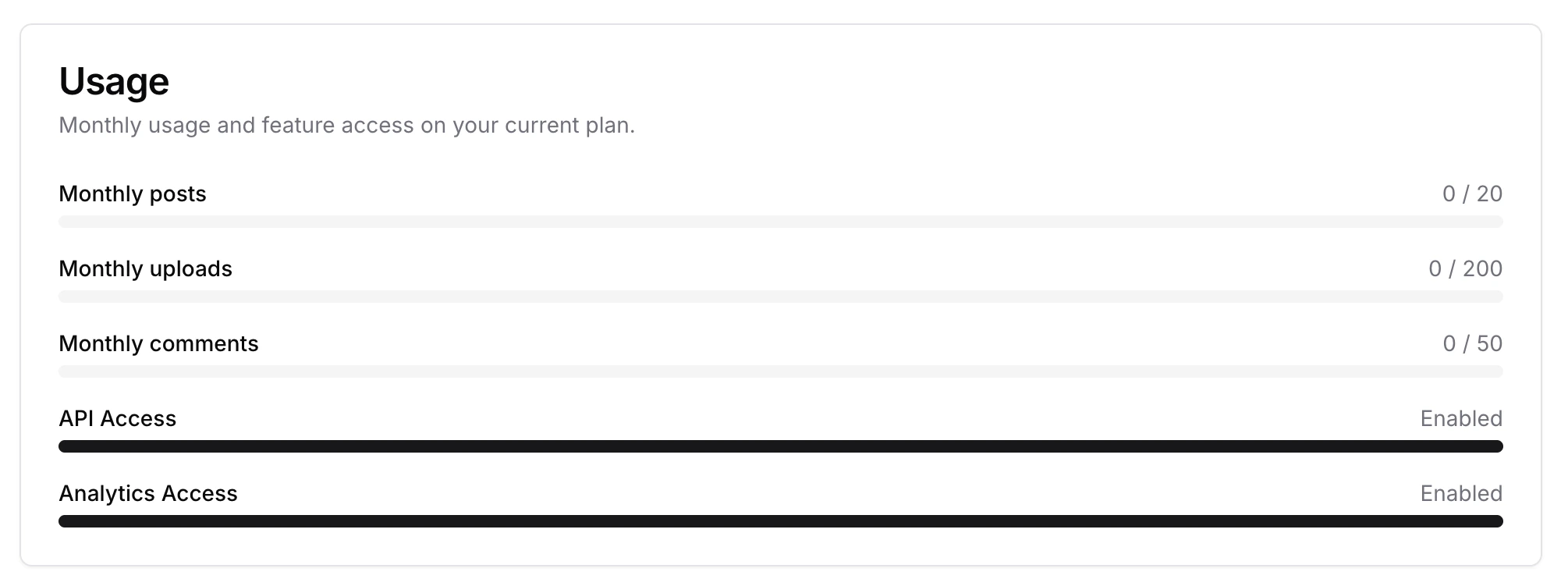
 The **Usage** view shows your post count, API usage, and analytics status for the current period.
 ## Organization settings
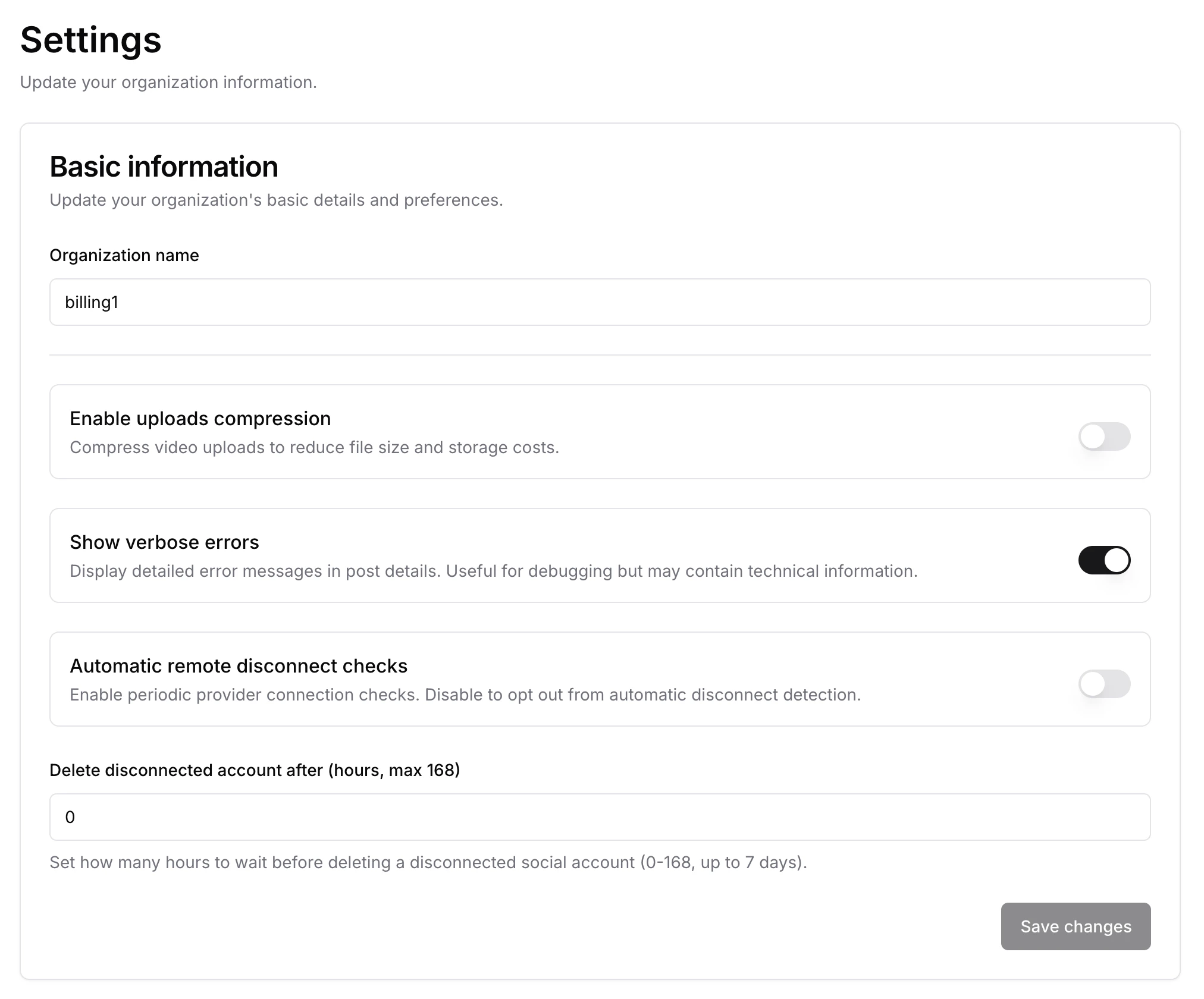
Click **Settings** to update your organization's basic information and preferences:
* **Organization name** - the display name for your organization.
* **Enable uploads compression** - compress video uploads to reduce file size and storage costs.
* **Show verbose errors** - display detailed error messages in post details. Useful for debugging, but may contain technical information.
* **Automatic remote disconnect checks** - run periodic provider connection checks. Disable to opt out of automatic disconnect detection.
* **Delete disconnected account after** - how many hours to wait before deleting a disconnected social account (0-168, up to 7 days).
Click **Save changes** to apply.
## Organization settings
Click **Settings** to update your organization's basic information and preferences:
* **Organization name** - the display name for your organization.
* **Enable uploads compression** - compress video uploads to reduce file size and storage costs.
* **Show verbose errors** - display detailed error messages in post details. Useful for debugging, but may contain technical information.
* **Automatic remote disconnect checks** - run periodic provider connection checks. Disable to opt out of automatic disconnect detection.
* **Delete disconnected account after** - how many hours to wait before deleting a disconnected social account (0-168, up to 7 days).
Click **Save changes** to apply.
 ## Summary
You now know what lives at the organization level - API keys, webhooks, billing, and settings - all shared across the teams inside your organization.
with lukewarm regards c: - bundle.social staff
## Summary
You now know what lives at the organization level - API keys, webhooks, billing, and settings - all shared across the teams inside your organization.
with lukewarm regards c: - bundle.social staff